
How to Send Repair Photos and Files Privately Through QuoteMe
A photo of a cracked screen or an error message can save a long explanation. The important part is sending the right evidence with the right enquiry, without exposing unrelated private information.
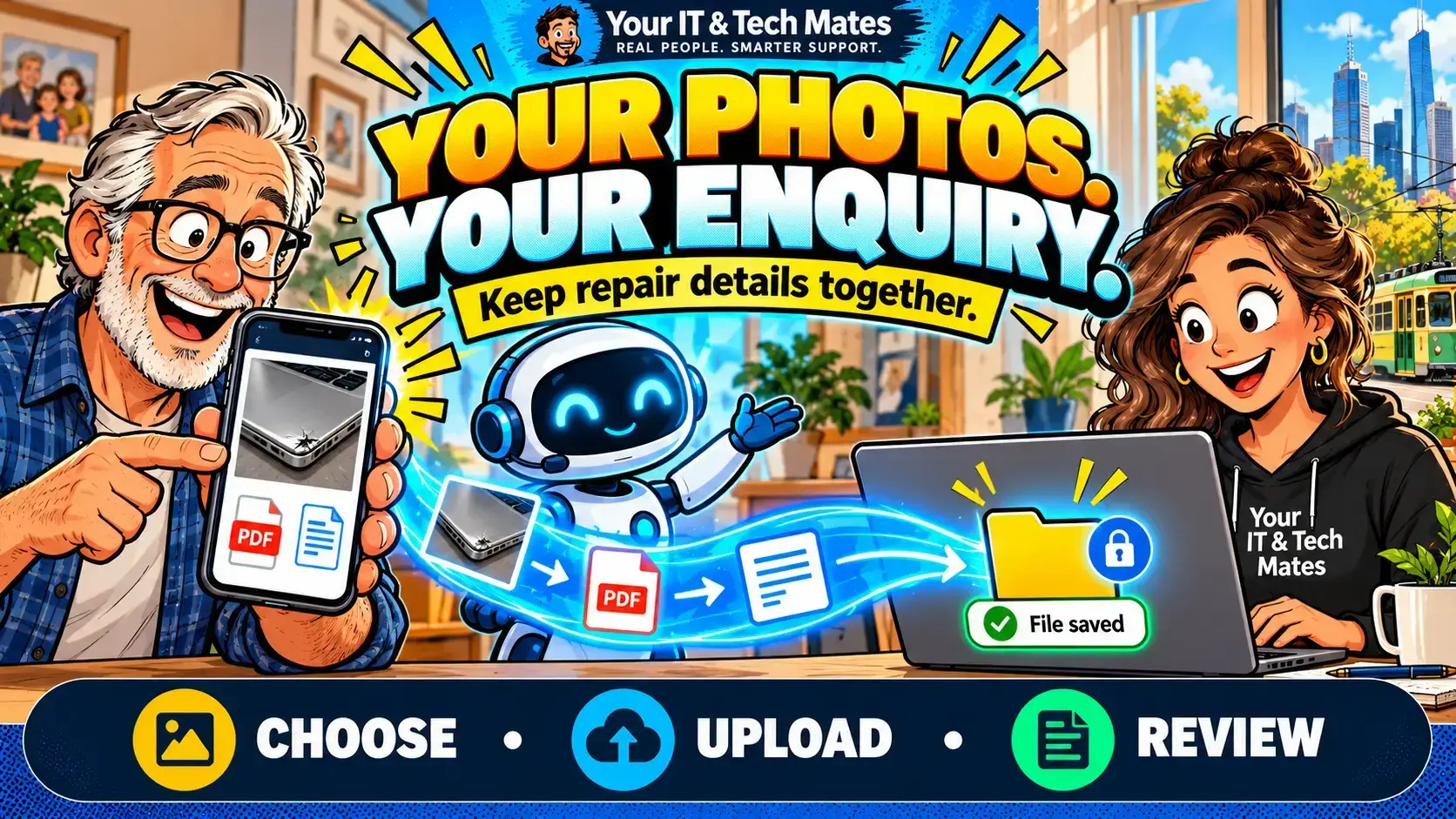
Quick answer
Use the private file controls offered in your QuoteMe enquiry or existing request, signing in when asked. Upload only relevant files, check that each is shown as saved, and review the enquiry before sending. Draft files do not themselves submit a request. If a request is saved but files are pending, use its existing recovery path rather than creating another enquiry.
Which photos or files help?
A useful attachment answers a specific question: what is damaged, what message appeared or which device is involved? The clearest evidence is often one well-chosen photo with a short explanation, rather than a whole camera roll.
- A clear view of visible damage, taken without dismantling or powering on unsafe equipment.
- A cropped screenshot of an error message, with the exact wording readable.
- A model label where it helps identify a part; hide unrelated identifiers when possible.
- A short document or text description relevant to the problem, when the upload controls permit it.
Write what changed as well. “This appeared after yesterday’s update” tells the technician something the image alone cannot. If the device has liquid damage or another urgent safety concern, follow the safety guidance and seek human help before trying to collect more evidence.
Check the image before uploading
Screenshots can reveal more than you intend: email addresses, open browser tabs, notifications, customer records or financial details. Crop to the relevant area and inspect the result before sharing. Avoid passwords, one-time codes, recovery phrases, full payment details and unrelated identity documents.
If you are helping a family member or support participant, check that they agree to the information being shared. An attachment should help describe the technology task, not become a substitute for consent. Read how to take a useful screenshot without sharing too much for a focused checklist.
How to add files to the correct enquiry
- Open the enquiry you want to continue. If it has already been sent, use the existing request conversation.
- Sign in with the account connected to the enquiry when prompted. The draft upload pathway checks ownership.
- Choose a relevant file and wait for its saved status. A selected filename alone is not proof that uploading finished.
- Remove an incorrect file before sending. If a file is unconfirmed or expired, retry or remove it as directed.
- Review the request and send only when ready. Check both the request confirmation and any attachment status afterwards.
The connected draft controls allow up to three files. Supported types, size limits and availability are shown by the current upload controls and configured policy. If the option is unavailable, describe the issue in words and ask the team how to provide evidence privately.
A repair photo journey from our own program
Illustrative example: a customer describes a cracked phone screen, adds one photo and notices that the image includes a private notification. They remove it, crop the original and upload the corrected version. The photo stays associated with the checked enquiry, rather than being posted on a public blog or sent to an unrelated request.
If the request is saved but the file transfer is still pending, the interface should make that distinction visible. The customer follows the saved request and its retry option. Repeatedly submitting the whole enquiry is not a good way to fix an attachment problem.
The development work behind private attachments
Our implementation checks the signed-in owner, the enquiry session and its case before managing draft files. The server validates file type and size against its policy. File status is tracked separately from request status, so the system can report a saved request with attachments still pending instead of declaring everything complete.
Files are held through the private storage pathway, with access checks and expiry handling. “Private” describes those controls; it is not a claim that sharing any sensitive document is appropriate. We also avoid calling an image an AI diagnosis. A technician still decides whether it is enough evidence to assess the next step.
For the wider workflow, see which photos help a repair quote and our privacy policy.
If sign-in expires while adding files
The connected private draft-file controls require the signed-in owner. If asked, sign in again with the account attached to the enquiry, reopen the correct request and check each file’s actual saved status. A filename selected on your device does not prove a file reached the request. Do not share passwords or one-time codes with a person to resolve an upload problem.
See how to check repairs, quotes, invoices and device history in My Tech Help.
Frequently asked questions
Do I need to sign in to add draft files?
The connected draft upload pathway requires a signed-in owner and checks that the files belong to the current enquiry. Follow the sign-in prompt if shown.
Does uploading a photo send the enquiry?
No. Uploading a draft file and sending the request are separate actions. Review the enquiry and choose to send when ready.
What if the request is saved but attachments are pending?
Use the existing saved-request pathway and any retry option shown. Do not create another enquiry just to retry its files.
Read the six-part QuoteMe in practice series
Follow the customer steps and the development decisions behind them.
- Is My QuoteMe Request Saved or Sent? How to Continue Safely
- iPhone Screen Repair Costs in Epping and Wollert: Guide Price or Final Quote?
- How to Send Repair Photos and Files Privately Through QuoteMe
- Can I Ask About Costs Without Starting My Enquiry Again?
- Slow Laptop and a Loud Fan? Tell Us Both—Without Technical Jargon
- How We Prevent Duplicate Enquiries When Someone Clicks Send Twice
Choose your next step
Need help with a device? Tell us what is happening in your own words. Already sent a request? Continue its conversation. Want a similar enquiry workflow for your business? Tell us which task and tools you want to improve.
Review your details before sending. Preparing an enquiry does not book a service, accept a quote or approve paid work. The team confirms scope, price and arrangements.
Based in Epping and Wollert, helping across Melbourne’s north. Check service areas or message our team.