
How to Take a Useful Screenshot for Tech Support Without Sharing Private Information
The best support screenshot shows the problem clearly and nothing more than is needed to understand it.
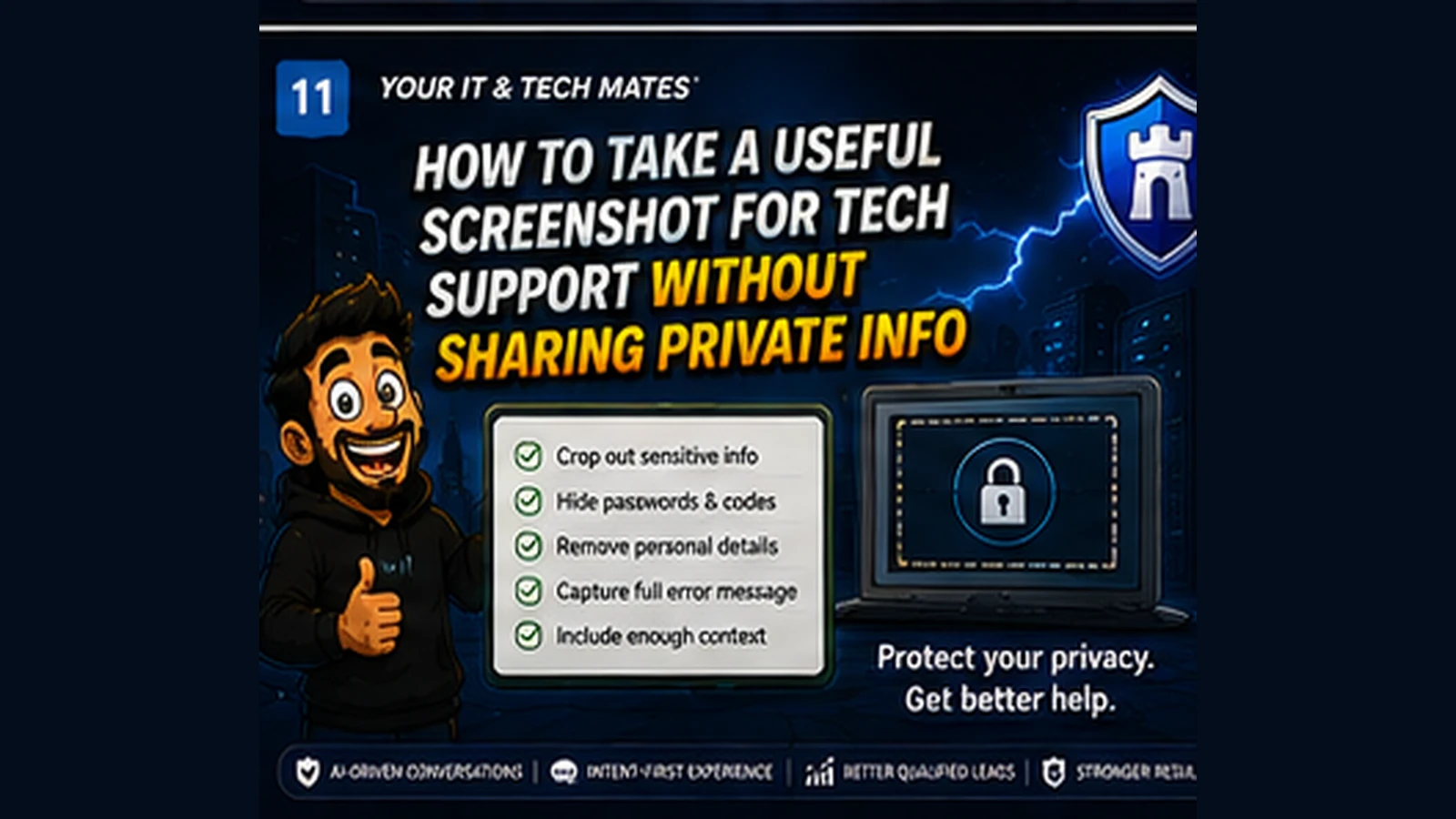
Quick answer
Capture the error your technician needs while protecting passwords, verification codes, banking details, private messages and unrelated personal information.
Capture the exact error first
Make sure the full message, code and application title are visible. If the problem disappears quickly, take the screenshot before closing the dialog.
Include enough context
A technician may need to know whether the message came from Windows, a browser, email software or another application. Avoid cropping so tightly that the source becomes unclear.
Remove unrelated information
Crop other windows, browser tabs, contact lists and background documents that do not help explain the problem.
Never expose credentials
Passwords, one-time verification codes, recovery keys and banking information should not appear in support screenshots. If they do, redact or retake the image before sharing.
Pair the image with one sentence
Add what you were doing immediately before the problem happened. That small piece of context can make the screenshot much more useful.
When a photo is better than a screenshot
For cracked screens, swollen devices, cable layout or physical damage, a camera photo may provide more useful evidence than a software screenshot.
A realistic example: sharing an email error without sharing the whole inbox
A customer needs help with an email send error. A full-screen screenshot might expose names, subject lines, contact details and private messages that have nothing to do with the fault. A better screenshot captures the error dialogue and enough of the application window to identify where it occurred, while cropping the inbox content.
More pixels versus more useful evidence
- Poor screenshot: Entire desktop, multiple open apps, personal notifications and a tiny unreadable error in the corner.
- Useful screenshot: Relevant window, readable error text, enough surrounding context to identify the application, with unrelated information removed.
- Customer benefit: The technician gets clearer evidence while the customer shares less unnecessary personal information.
Privacy and diagnostic quality usually point in the same direction
Removing unrelated clutter does not just protect privacy, it makes the actual problem easier to see. The goal is not maximum capture. It is minimum sufficient evidence.
Before you upload, scan the image once
Check the browser tabs, taskbar, notifications, usernames, email addresses, file names, photos and background windows. If any detail is not needed to explain the fault, crop or hide it. If the information cannot be safely removed, describe the message in text instead.
Frequently asked questions
Should I crop a screenshot before sending it?
Yes, if cropping removes unrelated private information while keeping the error and enough context to understand where it appeared.
Can I send a screenshot containing a verification code?
No. Retake or redact the screenshot so authentication codes and credentials are not visible.
Should I include the whole desktop?
Only when the surrounding desktop is relevant. Usually the affected application and enough context are sufficient.
How this connects to our Guided Tools
Our Guided Tools are designed to let customers describe a problem naturally, answer a small number of relevant questions, review what the system understands and then choose the next step. Quick-choice tools remain available as a fallback, and QuoteMe stays customer-controlled.
Need help with a real tech problem?
Tell us what is happening in plain English. We will help you work out the most useful next step without expecting you to diagnose it first.