What Can I Check in My Tech Help? Repairs, Quotes, Invoices and Device History
One secure place to find the next step for an existing enquiry, without sending the same problem again.
Quick answer
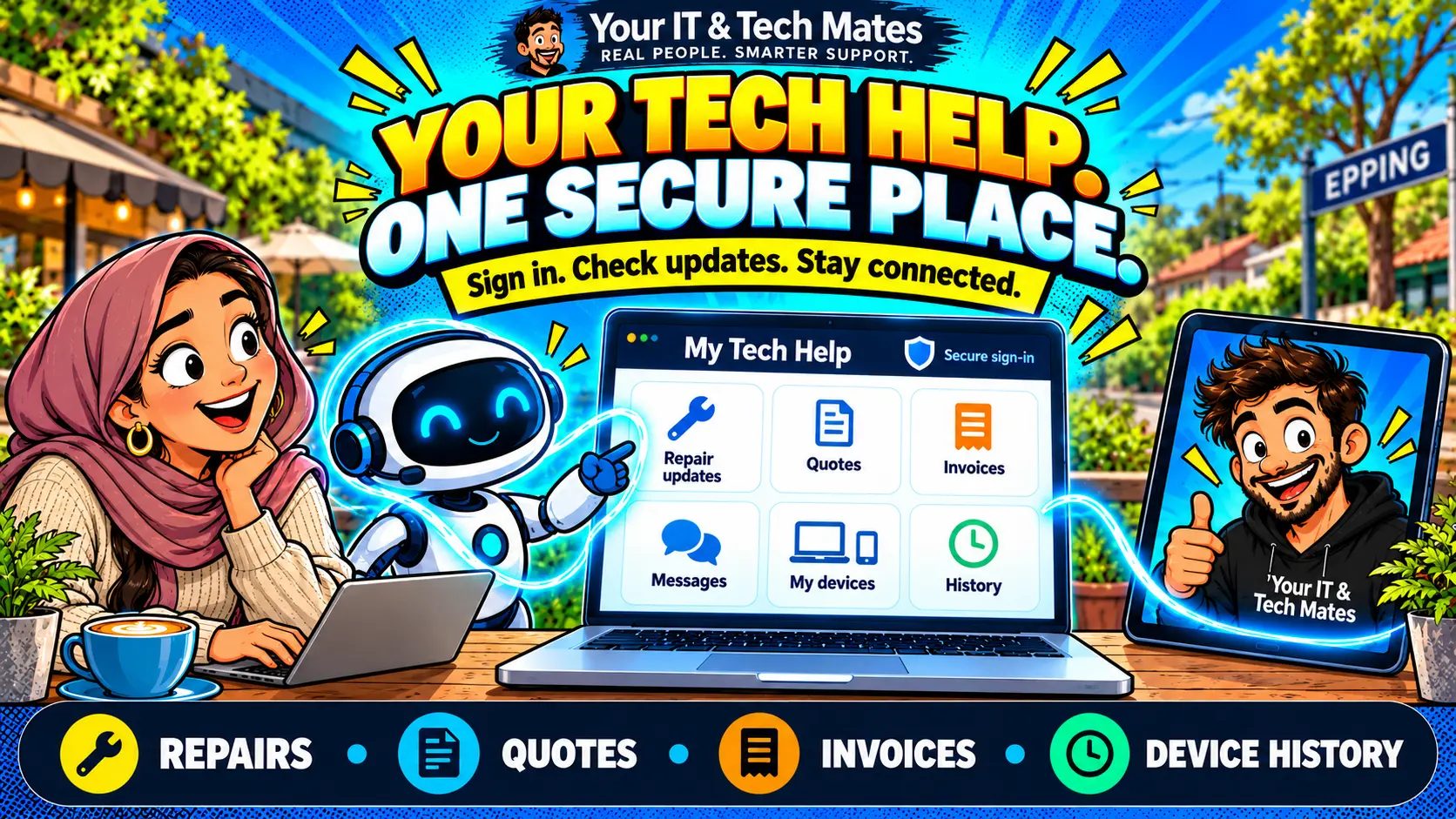
My Tech Help is the secure account pathway for continuing an existing enquiry. Where the relevant controls and records are available, you can check recorded repair updates, review a quote, view an issued invoice, read and reply in the same conversation, and open your saved devices or service history. Sign in with the account connected to the enquiry. A link or reference alone does not grant access.
These screens show saved information, not continuous live tracking. Opening a page does not send a message, accept a quote, confirm payment or book a service. Every quote requires human review; every booking needs a human technician’s final review and confirmation.
Start with the enquiry you already sent
If you have a saved-request reference or conversation link, use it to return to the same enquiry. For a new device problem, start with QuoteMe. For an update to an existing problem, continue its conversation so the team can read the earlier details.
- Open secure customer tasks, or use My requests.
- Sign in using the email account attached to your enquiry when asked.
- Choose the task and the correct request. If you have several requests, check the reference before replying.
- Read the recorded update and its date, then follow the next step shown. If something is unclear or missing, ask in the same conversation.
Task options are being introduced through a controlled rollout. You may see the existing account pages instead of every task listed below. This guide explains the supported paths; it does not promise that every record or control is available in every deployment.
Six things you can check
1. Repair updates
Read the latest recorded request or service stage and any customer-visible next step. A saved stage is not a promise that somebody is monitoring the device continuously. A request marked ready for handover does not establish a collection time: confirm arrangements with the team before travelling.
2. Quotes
When a customer-visible quote is available, read the scope, amount and terms on the secure quote page. Ask about anything you do not understand before making a decision there. A guide price or AI answer is a non-final estimate requiring human review. Opening a quote makes no decision; accepting one does not automatically confirm an appointment, take payment or prove work is complete.
3. Issued invoices
View an issued invoice when it is available for your request. Check its reference, total and due date. An invoice is not a payment receipt, and its existence does not prove a payment was received. If you need payment confirmation or a correction, ask the team through the existing conversation.
4. Conversations
Read the team’s recorded messages and reply in the same enquiry. Opening the conversation sends nothing. Check your wording and choose the actual send action when you want to add an update. A saved message is not proof that a staff member has read it; no reply time is promised by the receptionist.
5. Saved devices
Open the devices registered to your signed-in account. Check the device name and model before using a record to discuss a problem. Opening this task does not add or change a device. If details need correction, use the available account controls or ask the team.
6. Device and service history
Where records are linked, history can bring together recorded repairs, service visits and other technology events for your own devices. It may not include every earlier job. Missing history does not mean work never happened, and a completed service entry does not independently confirm payment or device collection.
Why sign-in and ownership checks matter
A reference helps identify a request; it is not a password. Entering an email address into the receptionist is also not proof that you own that account. The secure service checks the signed-in identity and whether the requested information belongs to that account before showing private details.
A reference-linked device history must also belong to the same customer. A forwarded link should not open another person’s photos, invoices or service history. If you are helping a parent or someone you support, ask the team about the appropriate authorisation rather than sharing passwords or one-time codes.
Use a trusted device where possible. Sign out when finished on a shared device, and do not rely only on closing the tab. Some private receptionist details may clear when you leave and return; choose the task again to obtain the current authorised view. Do not enter passwords, PINs, banking details, recovery keys or one-time codes into a support message.
If you corrected a draft after the enquiry was sent
A new detail typed into an older draft is not automatically an update to the saved request. For example, you might add that your Dell laptop is four years old after an enquiry already exists. If the screen says new details have not been sent, those details remain in the review. Open the existing conversation, check what is already there and deliberately send the update.
If another tab changed the enquiry, follow the offered Refresh saved enquiry step and review the latest saved details. Do not assume every unsent input has been saved. For an uncertain send, read the on-screen retry guidance and keep any existing request reference. See saved versus sent and how supported retries avoid duplicate enquiries.
If you cannot find the record you expected
Check that you signed in with the email attached to the original enquiry and selected the correct request. A different account, expired session, unavailable feature or unlinked record can affect what appears. Sign in again if asked. Contact the team through the normal support path if access still fails; do not send account credentials as evidence.
For the same problem, avoid repeatedly creating new requests while checking. An unavailable invoice view does not prove there is no invoice, and a missing payment update does not prove a payment failed. The team can check the relevant record through the authorised service process.
An everyday example: one laptop, one conversation
Illustrative example: a customer in Epping sends a Dell laptop enquiry, then returns to ask whether the team needs another detail. They sign in, choose the existing request, read the latest message and reply there. Later they can review an available quote or issued invoice through the same account. If a device history is linked, they can find recorded service information without opening somebody else’s device record.
This is an explanation of the intended workflow, not a report of a particular customer’s outcome. We have not published measured reductions in calls or staff handling time. Our customer-effort measurement guide explains why useful outcomes need evidence.
Frequently asked questions
Do I need to sign in to see private repair details?
Yes. Private request details require the signed-in account that owns the request. A reference, email typed into a chat or forwarded link is not permission to view it.
Does opening a quote confirm a booking?
No. Opening a quote makes no decision. Quotes require human review, and every booking needs a human technician’s final review and confirmation.
Does an issued invoice mean payment was received?
No. An issued invoice records a bill. It does not prove that payment was received or verified. Ask the team through the existing conversation if you need payment confirmation.
Can I check the history of any device?
Only records available to your authorised account should be shown. Device history may be incomplete if earlier work is not linked. Ask the team to check missing records.
Should I start another enquiry to add information?
For the same request, open its existing conversation to send an update. Details retained in an unsent review have not automatically been added to the conversation.
What if I cannot see these options?
Available controls depend on the current rollout and linked records. Use My requests or contact the team. Missing information does not prove a request, quote or payment does not exist.
Continue the six-part QuoteMe in practice series
This companion guide explains what to do after a request is saved. The original six parts cover preparing and continuing an enquiry.
- Is My QuoteMe Request Saved or Sent? How to Continue Safely
- iPhone Screen Repair Costs in Epping and Wollert: Guide Price or Final Quote?
- How to Send Repair Photos and Files Privately Through QuoteMe
- Can I Ask About Costs Without Starting My Enquiry Again?
- Slow Laptop and a Loud Fan? Tell Us Both—Without Technical Jargon
- How We Prevent Duplicate Enquiries When Someone Clicks Send Twice
Continue your existing request securely
Choose the request or task you need. Keep private details in the authorised account pathway and ask the team if something is unclear.
For a genuinely new issue, prepare a new QuoteMe enquiry. Quotes require human review. All bookings need a human technician’s final review and confirmation before the arrangements are treated as confirmed.
Your IT & Tech Mates is based in Epping and Wollert, helping across Melbourne’s north. The team confirms the suitable service and availability.