
Quick answer
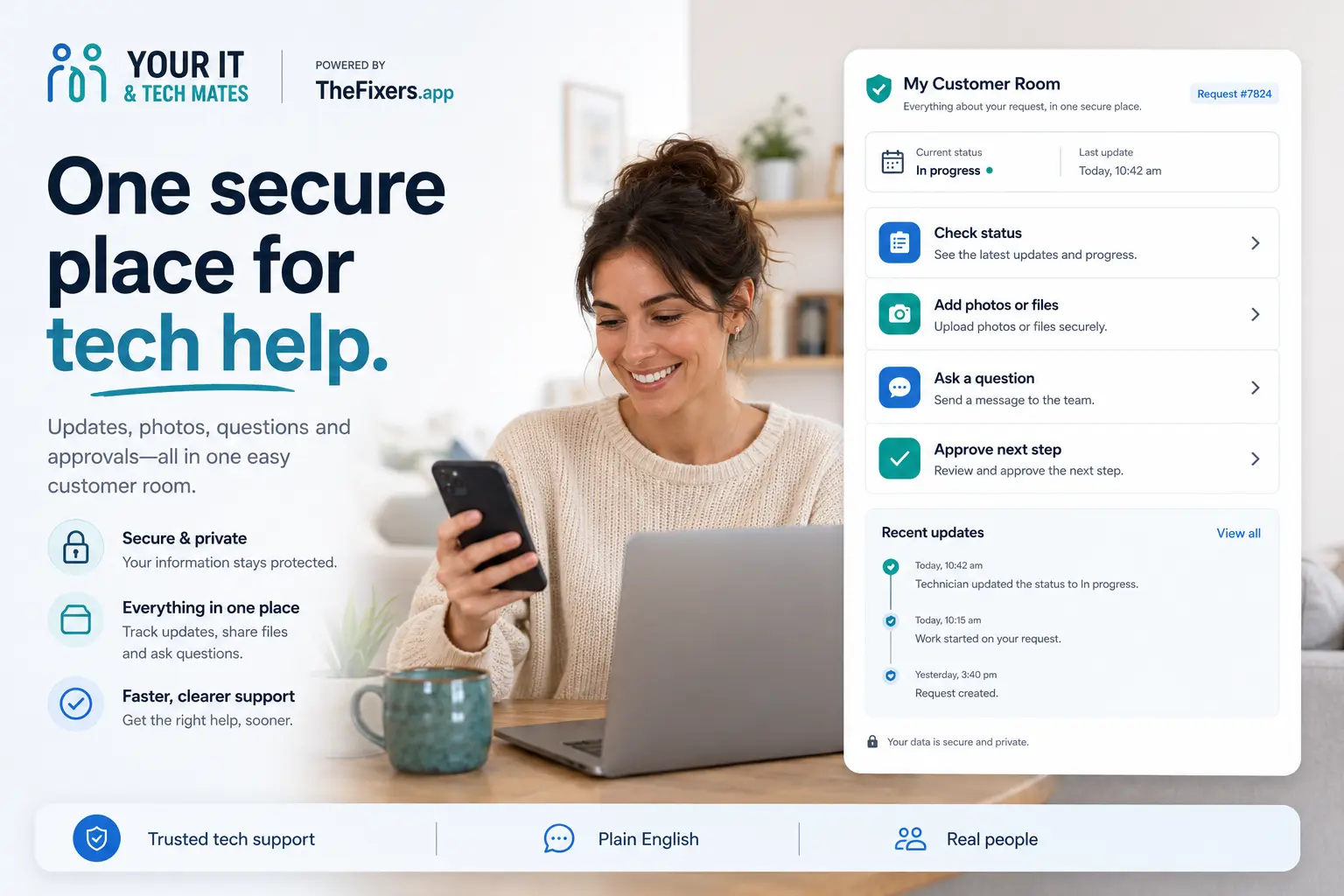
Your Customer Room is a secure page for one request. Start with the highlighted action, or use one of the four cards: check status, add photos of the problem, ask about a quote, or review quote / continue.
It is designed to be easier than SMS because your request reference stays attached and you do not need to explain the same issue again.
Best next step: If you are not sure what to do, tap Check status first. It shows the latest update and points you to the next step.
Check request statusQuick answer card
Your Customer Room is the safest place to manage one tech help request. It keeps updates, photos, questions and approvals together so you do not need to repeat the same details by SMS.
Best next step: Start with Check status, then add photos or ask a question if the latest update asks for more detail.
Post progress map
- What the Customer Room is
- What to tap first
- When to stop texting
- What to send us
- Related guides
- Local help
Risk level and safest next step
Stop / Try / Send
Stop
- Do not send passwords, PINs, banking codes or unnecessary private documents.
- Do not keep using SMS if the issue needs photos, quote questions or progress updates.
- Do not assume viewing the room approves a quote, payment or booking.
Try
- Check the latest update first.
- Use Add photos if the team needs to see the device, error message or damage.
- Use Ask a question if you want price, timing or scope explained before continuing.
Send
- Device brand and model if relevant.
- Photos or screenshots of the problem.
- What changed before the issue started.
- Your suburb and preferred timing if you need help.
Before you contact us or use the room
- □ Request reference if you have it.
- □ Device brand, model and issue summary.
- □ Photos of damage, cables, screens or error messages.
- □ Whether important files are backed up.
- □ Your suburb and the safest way to contact you.
Plain-English diagnosis table
| What you see | What it might mean | What to do next |
|---|---|---|
| I want an update | Use Check status | Read the latest customer-safe update first. |
| The team asked for photos | Use Add photos | Upload clear photos or screenshots so they stay attached to the request. |
| I need to ask about price | Use Ask a question | Ask before continuing; viewing the room does not approve payment. |
| I am ready to continue | Use Approve next step | Follow the official quote or next-step path. |
I’m not technical
Simple explanation
Your Customer Room is like a secure page for one job. It keeps your update, photos and questions in one place.
More technical detail
The room connects customer-safe status updates, request reference, upload paths, quote messages and verification checks without creating a separate SMS thread for every action.
Example from Melbourne North
A customer had a laptop issue and several photos to send. Instead of separate texts, they used the Customer Room so the request, screenshots and quote question stayed together. That made the next step clearer for everyone.
Need local help near Epping, Wollert, Mernda or Melbourne North?
This guide explains the safest next step. If you want local help, start with the option that matches what you need.
Still not sure what this means?
Send a photo or describe the issue. We’ll point you to the safest next step in plain English before you approve anything bigger.
Start QuoteMeWhat is a secure Customer Room?
A secure Customer Room is one page for one tech help request. It brings together the request reference, latest update, photos, quote questions and next-step actions.
What to tap first
- Read the latest update at the top of the room.
- Tap the recommended card if one is highlighted.
- Use Check status, Add photos of the problem, Ask about a quote, or Review quote / continue.
- Use human help if you are urgent, stuck or unsure.
Why this feels easier than SMS
With scattered texts
- You may need to repeat your name, issue and request number.
- Photos and quote questions can end up in different message threads.
- It is easy to miss what changed or what to do next.
- You may not know whether the team has enough detail to respond.
With your Customer Room
- Your request reference stays attached.
- You can tap one card instead of writing a long text.
- Photos, quote questions and progress stay in one place.
- Viewing the room does not start payment, booking or quote approval.
Common customer situations
| If this is you | Best card to use |
|---|---|
| You want a quick progress check | Tap Check status instead of sending “any update?” by text. |
| You need to show the problem | Tap Add photos of the problem so the images stay with the right request. |
| You are unsure about the price | Tap Ask about a quote before continuing. |
| You are ready to move forward | Tap Review quote / continue and follow the official next step. |
Safe use checklist
- Use the secure link or status page when you need to return.
- Only enter the contact detail used on the request when asked.
- Never share one-time codes, passwords, banking codes or device passcodes.
- Upload only helpful photos or files for the request.
- Choose human help if the situation is urgent or you are not sure what to do.
What happens after you choose a card?
- Check status: shows the latest customer-safe progress update.
- Add photos of the problem: takes you to the existing upload path so images stay with the request.
- Ask about a quote: opens the existing message path with the request context attached.
- Review quote / continue: takes you through the official quote path; payment only happens on the official payment page if required.
Related customer room guides
Benefits and practical outcomes
Use these outcomes as a practical check on whether the advice is making the situation clearer and easier to manage.
One request history
Keep the problem, updates and next step attached to the same help request.
Less repeated explanation
Customers do not need to restate the same issue each time the channel changes.
Safer follow-up
Sensitive details can stay in My Tech Help or the Customer Room instead of scattered messages.
Clear next action
Status, questions and quote steps are easier to understand when they stay connected.
FAQ
Can I use the Customer Room instead of texting?
Yes. For most status, photo and quote questions, the Customer Room is easier because your request reference stays attached.
Does opening the room approve anything?
No. Viewing the room does not start payment, confirm a booking or approve a quote.
Can I add photos of the problem?
Yes. Use the photo action so images stay connected to the request.
Why do I need a code?
The code helps protect your request details so a link alone is not enough.
What should I not upload?
Do not upload passwords, PINs, banking codes, gift card codes or unnecessary sensitive documents.