Clear Next Steps: Customer Follow-Up Reminders for a Small Office
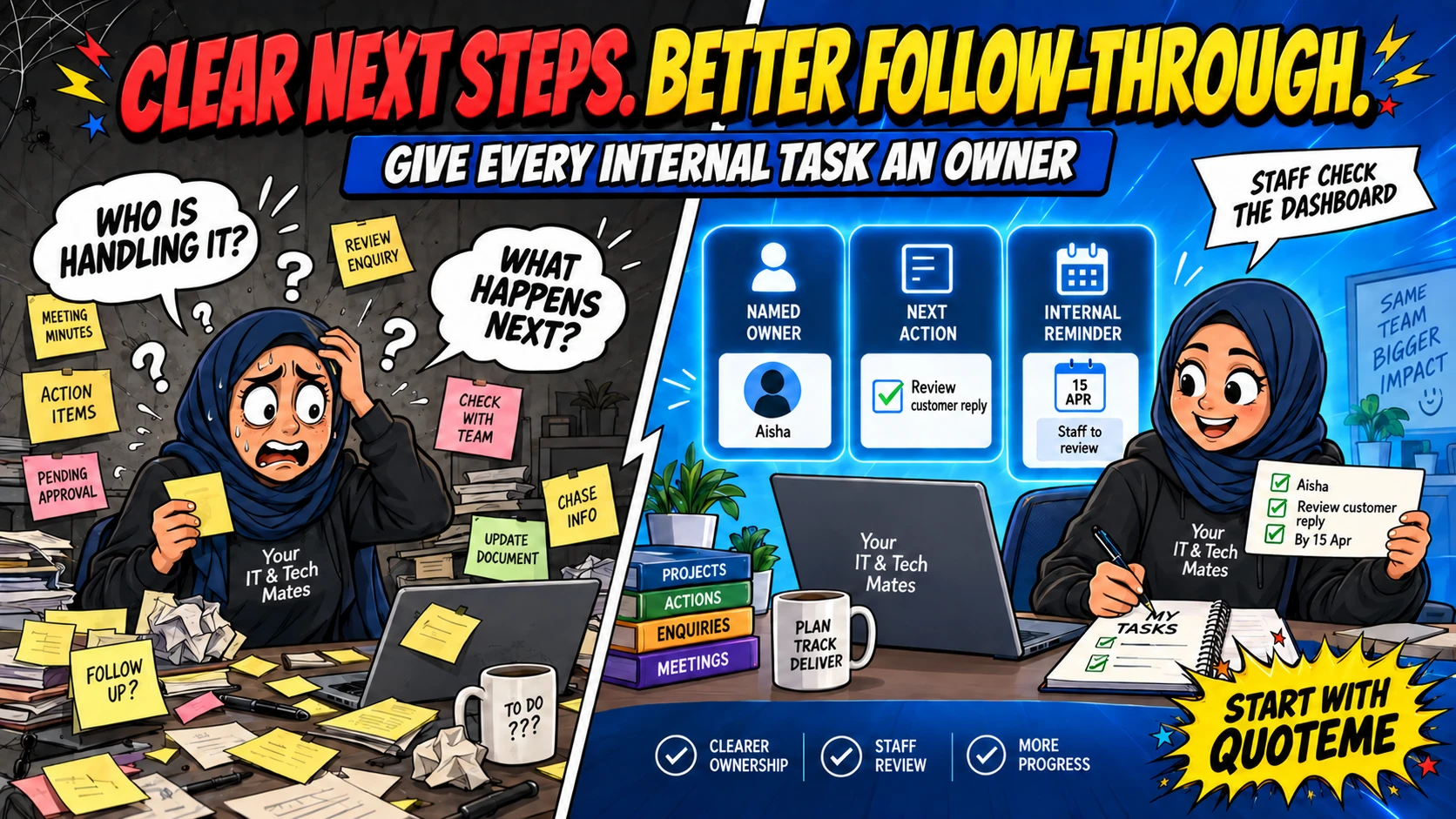
“Someone will follow that up” leaves a gap. A useful plan says who owns the next step, what they need to do and when the team should review it.
Quick answer
A follow-up plan records an owner, next internal action, waiting party and reminder time. Our Build 4 workflow shows these plans for staff to review; it does not send automatic emails, SMS messages or booking confirmations.
A reply is not always the end of the work
The team may have replied to a customer but still be waiting for a model number, an assessment result or a decision about a quote. If that next step lives only in someone’s memory, it becomes difficult for a colleague to pick up when the office gets busy.
Our follow-through workflow gives that pending work a shared internal plan. It connects responsibility and timing to the case, so staff can see what they intended to do next and record what happened when they finish the step.
Four details make a plan actionable
- Responsible person: who in the office will review or carry out the next step.
- Next action: a concrete task such as checking whether the missing model information has arrived.
- Waiting on: the customer, a colleague or another dependency that explains the pause.
- Reminder: when staff should return to the plan, using Melbourne time in this workflow.
“Follow up customer” is vague. “Check whether the requested device model has arrived, then review the enquiry” gives the next person a clearer starting point. A reminder should reflect the work the team intends to review, not imply that a technician appointment has been reserved.
A fictional follow-up over two days
On Monday, the office asks a customer for the model of a damaged tablet. A staff member records that the case is waiting on the customer and sets a reminder for Tuesday afternoon. The plan has an owner, so a colleague can see who is taking responsibility.
On Tuesday morning, the customer replies with the model and adds that the touch screen still works. When staff open or refresh the relevant view, the workflow can flag that the case has changed. The owner reviews the current conversation and adjusts the next action instead of sending yesterday’s question again.
After reviewing the enquiry, the staff member records an outcome such as “Model received; request passed for assessment of scope”. Completing that internal step does not close the customer’s case or mark a repair as finished.
A dashboard reminder needs a person to check it
Build 4 presents internal plans and due reminders in the office dashboard. Source changes are checked as staff open or refresh the relevant pages. This stage does not add a background monitor, email alert, SMS or push notification.
That means the team still needs a routine for checking the work view. A reminder that nobody opens cannot do the follow-up on its own. A “case changed” notice is also a reason to inspect the case; it does not necessarily mean the customer sent a new message.
Waiting, overdue and finished mean different things
A task can be waiting on a customer and still deserve a review. A due reminder means the intended review time has arrived; it does not automatically mean that a customer-facing deadline has been missed. Staff need to read the plan and the case together.
Finished steps require an outcome so the next person can understand what happened. If a case needs a new internal step, staff should review the situation and plan it deliberately. Finished plans do not automatically reopen when another message arrives; the normal inbox and Today activity still matter.
Responsibility is not permission to commit the business
Naming an owner is an internal office assignment. It does not dispatch a technician, change account permissions or authorise spending. Rescheduling a reminder does not reschedule a customer’s appointment. Cancelling an internal plan does not cancel the customer’s job.
Those boundaries help a small team keep planning useful without confusing it with the formal customer workflow. Replies, quote decisions and booking confirmations continue through their existing processes.
Build a review habit around the tool
A small office can agree on a regular time to inspect due work and a clear handover when the responsible person is away. When reviewing outcomes, look for tasks that repeatedly return to the queue or depend on information that was never requested clearly.
The practical goal is that every active request has an understandable next step. A reminder supports that habit; staff attention and a clear conversation with the customer are what complete it.
Frequently asked questions
Will I receive automatic follow-up messages?
This Build 4 internal planning workflow does not send automatic email, SMS or push notifications. Staff use the existing communication process when a message is needed.
Does completing a reminder mean my repair is finished?
No. Completing an internal next step records its outcome. It does not change the customer case or job status.
Does the dashboard continuously monitor every case?
No. Relevant source changes are checked when staff open or refresh the pages. The team must continue checking its normal inbox and work views.
Continue the virtual-admin series
- How a Virtual Admin Assistant Helps a Small Team Manage Customer Enquiries
- Better Follow-Up Questions: Less Back-and-Forth Before Tech Support
- From Customer Enquiry to QuoteMe: Why a Reviewed Handover Matters
Want help with your own office workflow?
Tell us where enquiries, quoting or follow-up work get stuck. Explore our small-business software and AI services or use the AI Opportunity Finder to think through a starting point.
Start with the problem in your own words
Need tech help or want to discuss a repeated office task? Tell us what is happening through QuoteMe. Our team can review the request and discuss the next step.