
AMD & NVIDIA Graphics Card Repair: 7 Signs Your GPU May Need Attention
No display, visual artifacts, crashes under load, overheating, fan faults, sudden black screens and unstable performance can all point toward a graphics-card problem. They do not prove the GPU itself has failed, so the safest path is to separate display, driver, cooling, power and hardware symptoms before replacing parts.
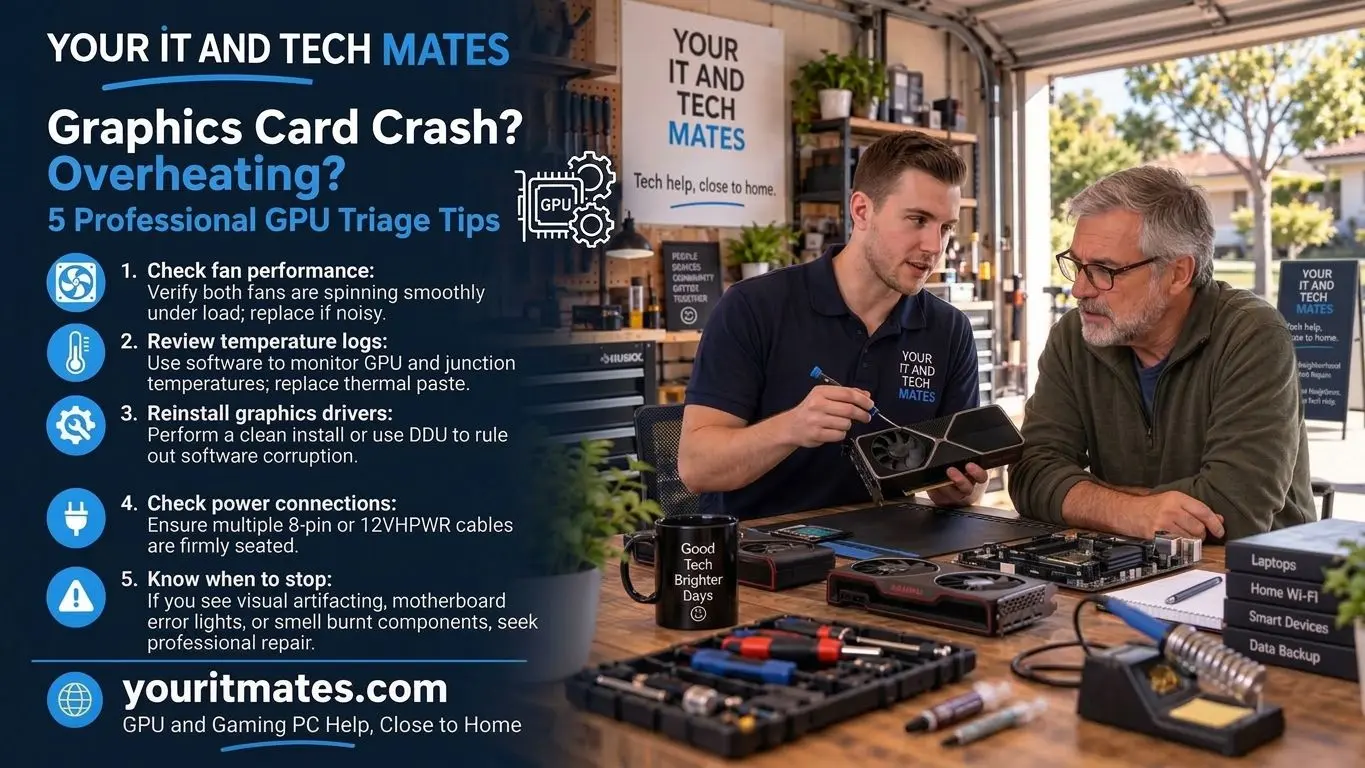
Start with the symptom, not the part
A graphics card is only one part of the display path. A black screen can also come from the monitor, cable, power supply, driver, motherboard or another startup fault. Use the observable symptom first, then narrow the cause.
7 signs your AMD or NVIDIA graphics card may need repair
- No display after the PC powers on. Fans and lights may start but the monitor stays blank.
- Visual artifacts. Coloured blocks, flashing pixels, lines, triangles or corrupted textures can point to the display path, GPU memory, heat or drivers.
- Crashes during games or GPU-heavy work. A system that fails under load may have thermal, power, driver or graphics hardware instability.
- Overheating or thermal throttling. Very high GPU temperatures, sudden frame-rate drops or shutdowns can indicate blocked cooling, fan trouble or a deeper hardware problem.
- GPU fans not spinning or making unusual noise. A failed or obstructed fan can quickly become a heat problem.
- Black screen or signal loss after load starts. Losing video only when a game or rendering task begins can point toward GPU power, heat, driver or card instability.
- Repeated driver resets or graphics errors. Software faults are possible, but recurring failures after reasonable driver checks deserve a hardware assessment.
What these symptoms suggest — and what they do not prove
| Symptom | Possible path | Still uncertain |
|---|---|---|
| Artifacts on both main and external display | GPU, VRAM, driver or heat | Which component is actually failing |
| Black screen but PC still running | Display path, GPU, cable or output | Whether the card itself is faulty |
| Crashes only under gaming load | GPU heat, power, driver or PSU | Whether the failure is graphics-specific |
| Fans loud or card very hot | Cooling, dust, fan or airflow | Whether heat has damaged the GPU |
Safe checks before you book
- Check the monitor input and display cable.
- Note whether the problem appears before Windows starts or only after login.
- If practical, try another known-working display or cable.
- Write down whether the fault happens only during gaming, rendering or other heavy GPU use.
- Record any error message, driver reset or visual artifact with a photo.
- Back up important files if the system is stable enough to do so.
Stop heavy use if there is a burning smell, extreme heat, repeated shutdowns, visible electrical damage or instability that is getting worse.
When a software fix may be enough
A graphics problem that started immediately after a driver or Windows update may be software-related. Driver rollback, a clean driver reinstall or correcting a display setting can sometimes resolve the issue. The important point is not to assume every artifact or crash means the GPU needs replacement.
When the repair may involve the card itself
If the same corruption appears outside Windows, on multiple displays, under repeatable load, or alongside persistent thermal or fan faults, hardware becomes more likely. Depending on the card, repair may involve cleaning, cooling service, fan replacement, connector or power-path checks, or deciding whether board-level repair or replacement is sensible.
We do not treat a symptom as a confirmed failed chip before assessment.
Repair or replace the graphics card?
The decision depends on the card age, replacement cost, warranty status, the rest of the PC, and whether the problem is a serviceable cooling or fan fault versus a deeper GPU/VRAM failure. A strong older card may still be worth repairing; an entry-level or heavily damaged card may be better replaced.
Read the Gaming PC Repair guide if the graphics problem is part of a wider gaming-PC issue.
Choose your next step
Not sure whether the problem is the screen or graphics card? Start with the Screen vs GPU Check. If you want a technician to review the symptoms, continue in QuoteMe. This guide stays attached to your request, so you can explain the problem once.
Frequently asked questions
Do visual artifacts always mean the graphics card is failing?
No. Artifacts can come from the GPU, memory, heat, drivers, cables or the display path. The pattern and whether the same issue appears on another display help narrow the cause.
Can an overheating graphics card be repaired?
Sometimes. Dust, fan faults, poor airflow or degraded thermal materials may be serviceable, but the exact repair depends on the card and whether the GPU or memory itself is damaged.
Should I keep gaming if the PC crashes under GPU load?
No. Repeated crashes, shutdowns, extreme heat or burning smells are reasons to stop heavy use until the fault is understood.
Can QuoteMe carry my GPU symptoms into the repair request?
Yes. Start with the symptom and the checks already tried. This page is carried into QuoteMe as source context so the team can review the graphics-card path without asking you to start again.
Next step
If you are unsure whether the issue is the display or graphics card, start with the diagnostic tool. If you already want a technician to review the problem, continue in QuoteMe with the page context attached.